PaddlePaddle(Python)
飞桨(PaddlePaddle)以百度多年的深度学习技术研究和业务应用为基础,集深度学习核心训练和推理框架、基础模型库、端到端开发套件、丰富的工具组件于一体,是中国首个自主研发、功能丰富、开源开放的产业级深度学习平台。 飞桨于2016 年正式开源,是主流深度学习框架中一款完全国产化的产品。
PaddlePaddle
1 安装
安装 GPU 版本:
python -m pip install paddlepaddle-gpu==3.3.0 -i https://www.paddlepaddle.org.cn/packages/stable/cu118/
安装 CPU 版本
python -m pip install paddlepaddle==3.3.0 -i https://www.paddlepaddle.org.cn/packages/stable/cu118/
如果是 GPU版本 需要注意自己的 CUDA 版本,不要过高即可,查看命令:
nvidia-smi
输出如下:
+-----------------------------------------------------------------------------+
| NVIDIA-SMI 525.105.17   Driver Version: 525.105.17   CUDA Version: 12.0     |
|-------------------------------+----------------------+----------------------+
| GPU  Name        Persistence-M| Bus-Id        Disp.A | Volatile Uncorr. ECC |
| Fan  Temp  Perf  Pwr:Usage/Cap|         Memory-Usage | GPU-Util  Compute M. |
|                               |                      |               MIG M. |
|===============================+======================+======================|
|   0  Tesla T4            On   | 00000000:00:09.0 Off |                    0 |
| N/A   27C    P8     8W /  70W |      4MiB / 15360MiB |      0%      Default |
|                               |                      |                  N/A |
+-------------------------------+----------------------+----------------------+

+-----------------------------------------------------------------------------+
| Processes:                                                                  |
|  GPU   GI   CI        PID   Type   Process name                  GPU Memory |
|        ID   ID                                                   Usage      |
|=============================================================================|
|  No running processes found                                                 |
+-----------------------------------------------------------------------------+
当前电脑的 CUDA 版本为 12.0,所以下载 小于等于 12.0 版本的 paddlepaddle 即可:
python -m pip install paddlepaddle-gpu==3.1.0 -i https://www.paddlepaddle.org.cn/packages/stable/cu118/
检查是否安装成功:
python -c "import paddle; paddle.utils.run_check()"
输出以下内容即代表成功:
(ocr) root@VM-0-80-ubuntu:/workspace# python -c "import paddle; paddle.utils.run_check()"
/root/miniforge3/envs/ocr/lib/python3.11/site-packages/paddle/utils/cpp_extension/extension_utils.py:715: UserWarning: No ccache found. Please be aware that recompiling all source files may be required. You can download and install ccache from: https://github.com/ccache/ccache/blob/master/doc/INSTALL.md
  warnings.warn(warning_message)
Running verify PaddlePaddle program ...
I0710 06:19:32.810492  2651 pir_interpreter.cc:1524] New Executor is Running ...
W0710 06:19:32.813128  2651 gpu_resources.cc:114] Please NOTE: device: 0, GPU Compute Capability: 7.5, Driver API Version: 12.0, Runtime API Version: 11.7
I0710 06:19:35.382279  2651 pir_interpreter.cc:1547] pir interpreter is running by multi-thread mode ...
PaddlePaddle works well on 1 GPU.
PaddlePaddle is installed successfully! Let's start deep learning with PaddlePaddle now.
PaddleOCR(图片识别)
项目背景:识别集装箱号
1 环境配置
当前使用的是虚拟环境:
- python:3.11
- paddlepaddle:3.1
- paddleocr:3.1.0
下载
确保已经安装 PaddlePaddle
下载网站:https://github.com/PaddlePaddle/PaddleOCR/releases
当前使用的版本是 3.1.0
下载后解压
unzip PaddleOCR-3.1.0.zip
安装依赖
cd PaddleOCR-3.1.0

pip install -r requirements.txt  --user
测试是否能正常运行:
python tools/infer/predict_system.py --image_dir="/workspace/img/" --use_angle_cls=True --use_space_char=True
输出以下内容即成功:
ppocr INFO: not find det model file path None
2 准备数据集
2.1 标注工具
-
PPOcrLabel,专门为 PPOCR 制作的标注工具,推荐。
存在问题:EXE 安装包运行会报错。但是该工具在本地运行标注的话还是比较推荐的。
-
X-AnyLabeling,支持多种导出格式,其中就支持 PPOCR 的格式。
2.2 标注完毕后的数据集
conno/1b4e2845-e9ba-4233-9268-bf07801ace0e.jpg	[{"transcription": "RKSU5020243", "points": [[233, 317], [299, 317], [258, 833], [181, 839]], "difficult": false}]
conno/6ffd244b-1d27-4084-998b-e4d7ac076c5f.jpg	[{"transcription": "ZGXU6173701", "points": [[717, 448], [781, 419], [835, 980], [751, 996]], "difficult": false}]
conno/0ba730a8-052b-4662-88fa-bfd3c7dbd118.jpg	[{"transcription": "WHLU5706937", "points": [[565, 567], [915, 485], [915, 551], [578, 635]], "difficult": false}]
conno/8f50bf55-f825-43ac-87a5-f744aa3c2099.jpg	[{"transcription": "EISU9420010", "points": [[295, 744], [624, 747], [618, 813], [299, 806]], "difficult": false}]
conno/33e22c52-64b6-4715-87d9-d3a7823b97f7.jpg	[{"transcription": "SSKU1302201", "points": [[660, 676], [960, 671], [966, 724], [662, 737]], "difficult": false}]
conno/34a24249-7670-4be2-981f-19c502ee7da2.jpg	[{"transcription": "TKRU4507940", "points": [[660, 395], [724, 395], [717, 882], [619, 902]], "difficult": false}]
conno/67ead2d0-89c0-455c-aef0-49a76a3492aa.jpg	[{"transcription": "待识别", "points": [[585, 415], [589, 415], [593, 501], [917, 341], [893, 263]], "difficult": false}]
conno/78c58cfa-ff0f-4890-9fd9-07a0b639b9ca.jpg	[{"transcription": "LYGU3568255", "points": [[553, 393], [587, 491], [972, 334], [983, 245]], "difficult": false}]
conno/481aee74-f9ce-4145-a8c7-f4c1f45fcc75.jpg	[{"transcription": "RKSU4005584", "points": [[56, 298], [19, 935], [101, 937], [115, 280]], "difficult": false}]
conno/630d6e72-f99d-4922-8886-ea14f9e1a9bd.jpg	[{"transcription": "FCIU2682384", "points": [[562, 737], [572, 803], [867, 712], [858, 655]], "difficult": false}]
conno/9751b358-0b48-4006-8a73-89e816d37b67.jpg	[{"transcription": "CNIU2452605", "points": [[608, 801], [606, 867], [908, 837], [906, 773]], "difficult": false}]
3 准备预训练模型
如果已经有预训练模型的话,可以忽略这一步。
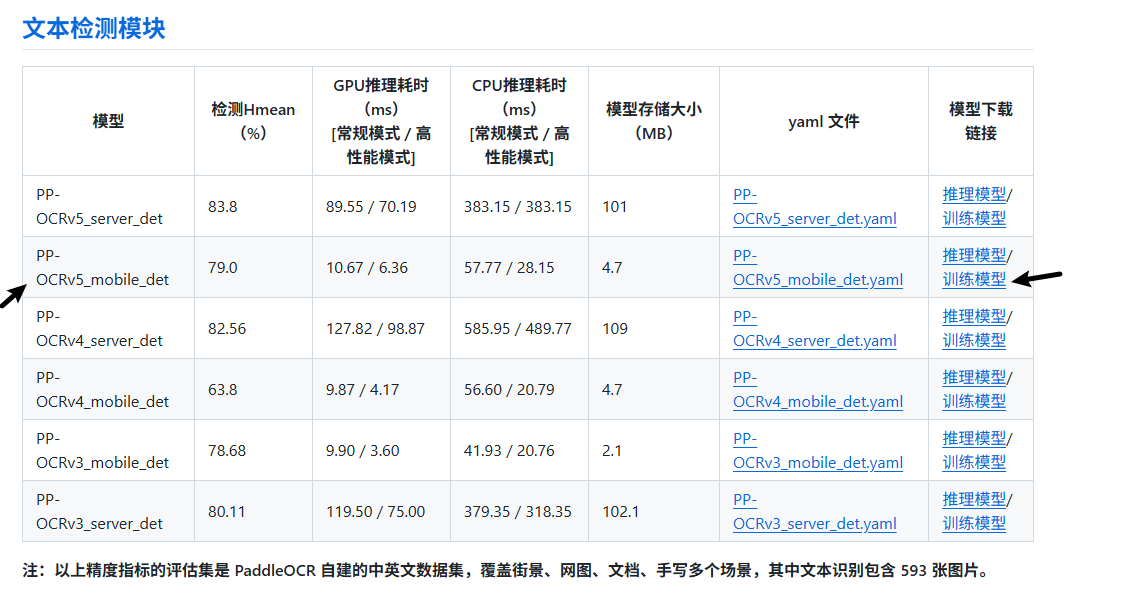
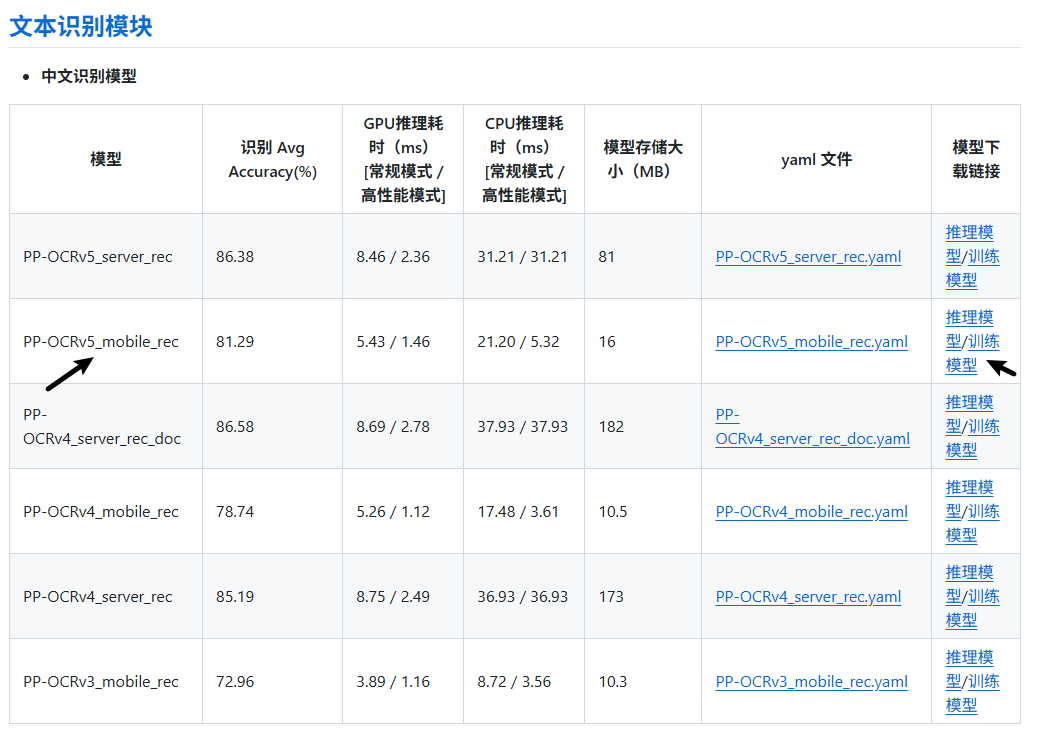
下载地址:https://github.com/PaddlePaddle/PaddleOCR/blob/release/3.1/docs/version3.x/model_list.md
如果报 404 的话,根据 版本 + 路径 进行查找即可。
根据情况选择 mobile 和 server 模型
- mobile: 训练速度快,精度较低,识别速度快
- server: 训练速度慢,精度较高,识别速度慢
3.1 文本检测训练模型
3.2 文本识别训练模型
错误情况
ImportError: libGL.so.1: cannot open shared object file: No such file or directory
原因:缺少 libGL.so.1 库
解决方案:
sudo apt update
sudo apt install libgl1-mesa-glx
all input arrays must have the same shap
原因:图像尺寸不一致
解决方案: 将 batch_size_per_card 设置为 1
Eval:
  loader:
    batch_size_per_card: 1
OSError: cannot open resource
原因:字体路径无效
解决方案:将paddleocr里面的字体放到系统字体路径下
cp /workspace/PaddleOCR-3.1.0/doc/fonts/simfang.ttf /usr/share/fonts/
PaddleX(服务化部署)
PaddleX 3.0 是基于飞桨框架构建的低代码开发工具,它集成了众多开箱即用的预训练模型,可以实现模型从训练到推理的全流程开发,支持国内外多款主流硬件,助力AI 开发者进行产业实践。
1 环境配置
当前使用的是虚拟环境:
- python:3.11
- paddlepaddle:3.1
- paddleocr:3.1.0
安装paddlex
pip install "paddlex[base]"
确保已经安装 PaddlePaddle
2 部署项目
参考文档:https://paddlepaddle.github.io/PaddleX/latest/pipeline_deploy/serving.html#12
2.1 安装服务化部署插件
方便 java 等语言接口的调用
paddlex --install serving
2.2 生成配置文件
使用相关命令,其中 OCR 当前为通用 OCR 产线,需要不同的产线就修改不同的名称即可。
paddlex --get_pipeline_config OCR --save_path ./OCR.yaml
生成成功会提示
The pipeline config has been saved to: OCR.yaml
生成的默认配置如下:
pipeline_name: OCR

text_type: general

use_doc_preprocessor: True
use_textline_orientation: True

SubPipelines:
  DocPreprocessor:
    pipeline_name: doc_preprocessor
    use_doc_orientation_classify: True
    use_doc_unwarping: True
    SubModules:
      DocOrientationClassify:
        module_name: doc_text_orientation
        model_name: PP-LCNet_x1_0_doc_ori
        model_dir: null
      DocUnwarping:
        module_name: image_unwarping
        model_name: UVDoc
        model_dir: null

SubModules:
  TextDetection:
    module_name: text_detection
    model_name: PP-OCRv5_server_det
    model_dir: null
    limit_side_len: 64
    limit_type: min
    max_side_limit: 4000
    thresh: 0.3
    box_thresh: 0.6
    unclip_ratio: 1.5
  TextLineOrientation:
    module_name: textline_orientation
    model_name: PP-LCNet_x1_0_textline_ori
    model_dir: null
    batch_size: 6
  TextRecognition:
    module_name: text_recognition
    model_name: PP-OCRv5_server_rec
    model_dir: null
    batch_size: 6
    score_thresh: 0.0
修改配置文件
注意将训练好的模型路径配置 ./pipeline/rec_inference 和 ./pipeline/det_inference
# 整体 pipeline 名称,用于识别产线名称
pipeline_name: OCR

# 文本类型,可选 general(通用)或 others,决定一些后处理策略
text_type: general

# 如无严重倾斜/扫描件,建议设为 False,可显著提升速度
use_doc_preprocessor: False

# mobile 模型一般建议关闭
use_textline_orientation: False

# 正式的 OCR 主流程模块
SubModules:

  # 文本检测模块(通常是基于 DB 的检测器)
  TextDetection:
    module_name: text_detection
    model_name: PP-OCRv5_mobile_det   # 使用的是 mobile 版大模型
    model_dir: ./det_inference   # 本地模型文件夹路径(需包含 model.pdmodel 等)
     # 调大输入尺寸,关注细节
    limit_side_len: 960
    limit_type: min
    max_side_limit: 4000
    # 降低阈值,减少漏检
    thresh: 0.3
    box_thresh: 0.5
    # 放宽文本框,避免裁字
    unclip_ratio: 1.8

  # 文本识别模块(通常是 CRNN + CTC 或 SVTR 模型)
  TextRecognition:
    module_name: text_recognition
    model_name: PP-OCRv5_mobile_rec   # 同样使用的是 mobile 版识别模型
    model_dir: ./rec_inference
    batch_size: 6                     # 一次识别图块的数量,适当调大可提高 GPU 利用率
    score_thresh: 0.0                 # 识别结果置信度下限,低于此不输出
2.3 运行服务器
通过 PaddleX CLI 运行服务器:
paddlex --serve --pipeline {产线名称或产线配置文件路径} [{其他命令行选项}]
参考命令:
paddlex --serve --pipeline .\OCR.yaml --device gpu:0 --port 8866
可以看到类似以下展示的信息,即代表成功
INFO:     Started server process [63108]
INFO:     Waiting for application startup.
INFO:     Application startup complete.
INFO:     Uvicorn running on http://0.0.0.0:8080 (Press CTRL+C to quit)
2.4 调用服务
对于服务提供的主要操作:
- HTTP请求方法为POST。
- 请求体和响应体均为JSON数据(JSON对象)。
- 当请求处理成功时,响应状态码为
200,响应体的属性如下:
| 名称 | 类型 | 含义 |
|---|---|---|
logId | string | 请求的UUID。 |
errorCode | integer | 错误码。固定为0。 |
errorMsg | string | 错误说明。固定为"Success"。 |
result | object | 操作结果。 |
- 当请求处理未成功时,响应体的属性如下:
| 名称 | 类型 | 含义 |
|---|---|---|
logId | string | 请求的UUID。 |
errorCode | integer | 错误码。与响应状态码相同。 |
errorMsg | string | 错误说明。 |
服务提供的主要操作如下:
infer
获取图像OCR结果。
POST /ocr
- 请求体的属性如下:
| 名称 | 类型 | 含义 | 是否必填 |
|---|---|---|---|
file | string | 服务器可访问的图像文件或PDF文件的URL,或上述类型文件内容的Base64编码结果。默认对于超过10页的PDF文件,只有前10页的内容会被处理。 要解除页数限制,请在产线配置文件中添加以下配置:Serving: extra: max_num_input_imgs: null | 是 |
fileType | integer | null | 文件类型。0表示PDF文件,1表示图像文件。若请求体无此属性,则将根据URL推断文件类型。 |
visualize | boolean | null | 是否返回可视化结果图以及处理过程中的中间图像等。传入 true:返回图像。传入 false:不返回图像。若请求体中未提供该参数或传入 null:遵循产线配置文件Serving.visualize 的设置。 例如,在产线配置文件中添加如下字段: Serving: visualize: False 将默认不返回图像,通过请求体中的visualize参数可以覆盖默认行为。如果请求体和配置文件中均未设置(或请求体传入null、配置文件中未设置),则默认返回图像。 |
useDocOrientationClassify | boolean | null | 请参阅产线对象中 predict 方法的 use_doc_orientation_classify 参数相关说明。 |
useDocUnwarping | boolean | null | 请参阅产线对象中 predict 方法的 use_doc_unwarping 参数相关说明。 |
useTextlineOrientation | boolean | null | 请参阅产线对象中 predict 方法的 use_textline_orientation 参数相关说明。 |
textDetLimitSideLen | integer | null | 请参阅产线对象中 predict 方法的 text_det_limit_side_len 参数相关说明。 |
textDetLimitType | string | null | 请参阅产线对象中 predict 方法的 text_det_limit_type 参数相关说明。 |
textDetThresh | number | null | 请参阅产线对象中 predict 方法的 text_det_thresh 参数相关说明。 |
textDetBoxThresh | number | null | 请参阅产线对象中 predict 方法的 text_det_box_thresh 参数相关说明。 |
textDetUnclipRatio | number | null | 请参阅产线对象中 predict 方法的 text_det_unclip_ratio 参数相关说明。 |
textRecScoreThresh | number | null | 请参阅产线对象中 predict 方法的 text_rec_score_thresh 参数相关说明。 |
- 请求处理成功时,响应体的
result具有如下属性:
| 名称 | 类型 | 含义 |
|---|---|---|
ocrResults | object | OCR结果。数组长度为1(对于图像输入)或实际处理的文档页数(对于PDF输入)。对于PDF输入,数组中的每个元素依次表示PDF文件中实际处理的每一页的结果。 |
dataInfo | object | 输入数据信息。 |
ocrResults中的每个元素为一个object,具有如下属性:
| 名称 | 类型 | 含义 |
|---|---|---|
prunedResult | object | 产线对象的 predict 方法生成结果的 JSON 表示中 res 字段的简化版本,其中去除了 input_path 和 page_index 字段。 |
ocrImage | string | null |
docPreprocessingImage | string | null |
inputImage | string | null |
Java调用实例
package cn.g3soft;

import okhttp3.*;
import com.fasterxml.jackson.databind.ObjectMapper;
import com.fasterxml.jackson.databind.JsonNode;
import com.fasterxml.jackson.databind.node.ObjectNode;

import javax.imageio.IIOImage;
import javax.imageio.ImageIO;
import javax.imageio.ImageWriteParam;
import javax.imageio.ImageWriter;
import javax.imageio.stream.ImageOutputStream;

import java.awt.image.BufferedImage;
import java.io.*;
import java.util.Base64;

public class Test {

    public static void main(String[] args) throws IOException {
        String API_URL = "http://localhost:8866/ocr";
        String imagePath = "D:\\code\\python-project\\boxocr\\100-2\\20241004082017A007.jpg";

        // 压缩并限制最大500KB大小
        long maxSizeBytes = 500 * 1024;

        long compressStart = System.currentTimeMillis();
        byte[] compressedBytes = compressImageToMaxSize(imagePath, maxSizeBytes);
        long compressEnd = System.currentTimeMillis();
        System.out.println("Image compression time: " + (compressEnd - compressStart) + " ms");
        System.out.println("Compressed image size: " + compressedBytes.length + " bytes");

        String base64Image = Base64.getEncoder().encodeToString(compressedBytes);

        ObjectMapper objectMapper = new ObjectMapper();
        ObjectNode payload = objectMapper.createObjectNode();
        payload.put("file", base64Image);
        payload.put("fileType", 1);

        OkHttpClient client = new OkHttpClient();
        MediaType JSON = MediaType.get("application/json; charset=utf-8");
        RequestBody body = RequestBody.create(JSON, payload.toString());

        long ocrStart = System.currentTimeMillis();
        Request request = new Request.Builder()
                .url(API_URL)
                .post(body)
                .build();

        try (Response response = client.newCall(request).execute()) {
            long ocrEnd = System.currentTimeMillis();
            System.out.println("OCR request elapsed time: " + (ocrEnd - ocrStart) + " ms");

            if (response.isSuccessful()) {
                String responseBody = response.body().string();
                JsonNode root = objectMapper.readTree(responseBody);
                JsonNode result = root.get("result");

                JsonNode ocrResults = result.get("ocrResults");
                for (int i = 0; i < ocrResults.size(); i++) {
                    JsonNode item = ocrResults.get(i);

                    JsonNode prunedResult = item.get("prunedResult");
                    System.out.println("Pruned Result [" + i + "]: " + prunedResult.toString());

                    // 提取 rec_texts 和 rec_scores
                    JsonNode recTextsNode = prunedResult.get("rec_texts");
                    JsonNode recScoresNode = prunedResult.get("rec_scores");

                    if (recTextsNode != null && recScoresNode != null && recTextsNode.isArray() && recScoresNode.isArray()) {
                        System.out.println("rec_texts:");
                        for (JsonNode textNode : recTextsNode) {
                            System.out.println("  " + textNode.asText());
                        }
                        System.out.println("rec_scores:");
                        for (JsonNode scoreNode : recScoresNode) {
                            System.out.println("  " + scoreNode.asDouble());
                        }
                    } else {
                        System.out.println("rec_texts or rec_scores not found or invalid format.");
                    }

                    // 保存 OCR 图片为文件
                    String ocrImageBase64 = item.get("ocrImage").asText();
                    byte[] ocrImageBytes = Base64.getDecoder().decode(ocrImageBase64);
                    String ocrImgPath = "ocr_result_" + i + ".jpg";

                    try (FileOutputStream fos = new FileOutputStream(ocrImgPath)) {
                        fos.write(ocrImageBytes);
                        System.out.println("Saved OCR image to: " + ocrImgPath);
                    }
                }
            } else {
                System.err.println("Request failed with HTTP code: " + response.code());
            }
        }
    }

    /**
     * 压缩图片,最大限制文件大小,不超过maxFileSizeBytes
     * 通过递减压缩质量尝试实现大小限制,最低质量0.1
     */
    public static byte[] compressImageToMaxSize(String imagePath, long maxFileSizeBytes) throws IOException {
        File file = new File(imagePath);
        BufferedImage image = ImageIO.read(file);
        if (image == null) {
            throw new IOException("Failed to read image from " + imagePath);
        }

        ImageWriter jpgWriter = ImageIO.getImageWritersByFormatName("jpg").next();
        ImageWriteParam jpgWriteParam = jpgWriter.getDefaultWriteParam();
        jpgWriteParam.setCompressionMode(ImageWriteParam.MODE_EXPLICIT);

        float quality = 0.9f;
        ByteArrayOutputStream baos = new ByteArrayOutputStream();

        while (quality >= 0.1f) {
            baos.reset();
            jpgWriteParam.setCompressionQuality(quality);

            try (ImageOutputStream ios = ImageIO.createImageOutputStream(baos)) {
                jpgWriter.setOutput(ios);
                jpgWriter.write(null, new IIOImage(image, null, null), jpgWriteParam);
            }

            if (baos.size() <= maxFileSizeBytes) {
                jpgWriter.dispose();
                return baos.toByteArray();
            }
            quality -= 0.05f;
        }
        // 质量降至最低仍未达到限制,返回最后压缩结果
        jpgWriter.dispose();
        return baos.toByteArray();
    }
}
错误情况
Please use PaddlePaddle with GPU version.
原因:当前 PaddlePaddle 版本不是GPU的,而是CPU的。
解决方法:安装GPU版本的PaddlePaddle
ImportError:DLL load failed while importing cv2:找不到指定的模块
当前环境:Windows Server 2012
安装 Microsoft Visual C++ Redistributable
- OpenCV 依赖于 Microsoft Visual C++ Redistributable 运行时库。如果这些库缺失,可能会导致 DLL 加载失败。
- 下载并安装最新版本的 Microsoft Visual C++ Redistributable:
检查 Python 和 OpenCV 的位数是否匹配
- 确保你安装的 Python 版本(32 位或 64 位)与 OpenCV 的位数一致。
- 你可以通过以下命令检查 Python 的位数:
python -c "import struct; print(struct.calcsize('P') * 8)" - 如果不匹配,卸载并重新安装正确位数的 Python 和 OpenCV。 安装完成后,重启计算机。
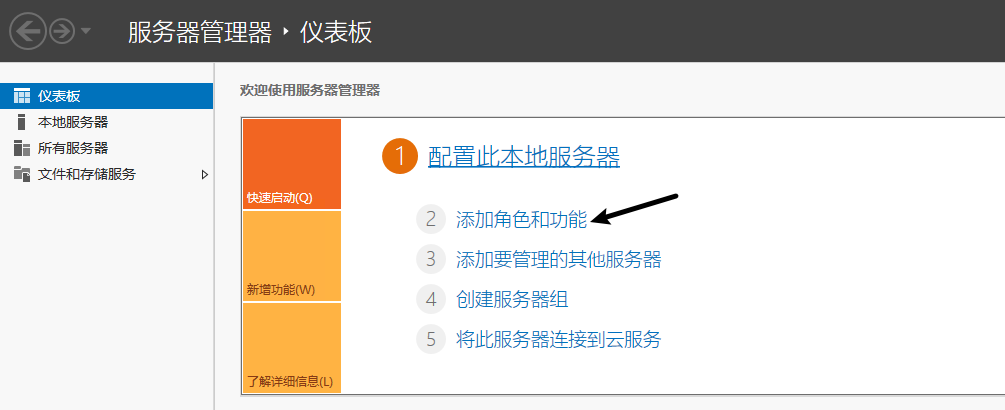
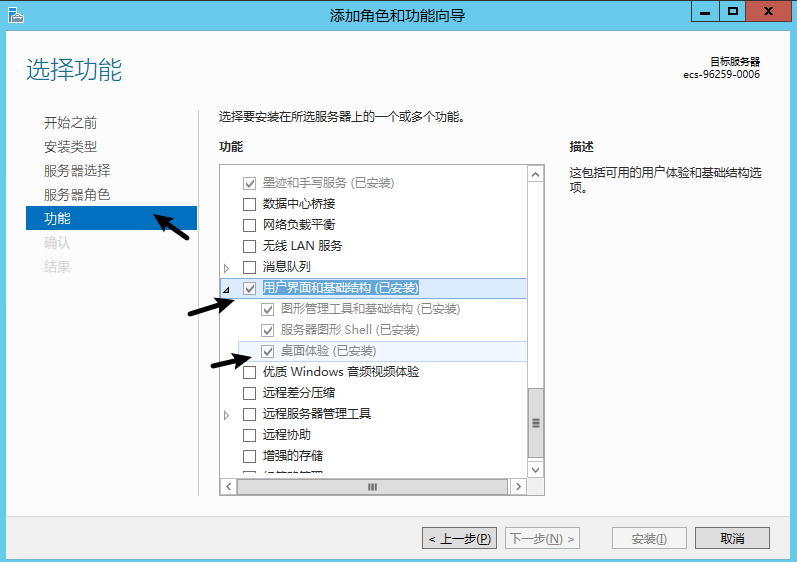
一定要打开桌面实验
- 打开服务器面板,选择 添加角色和功能
- 在功能处开启 桌面体验
如果开启 桌面体验 报错:尚未开启 WinRM 服务, 这个时候需要开启 Windows Remote Management (WS-Management)
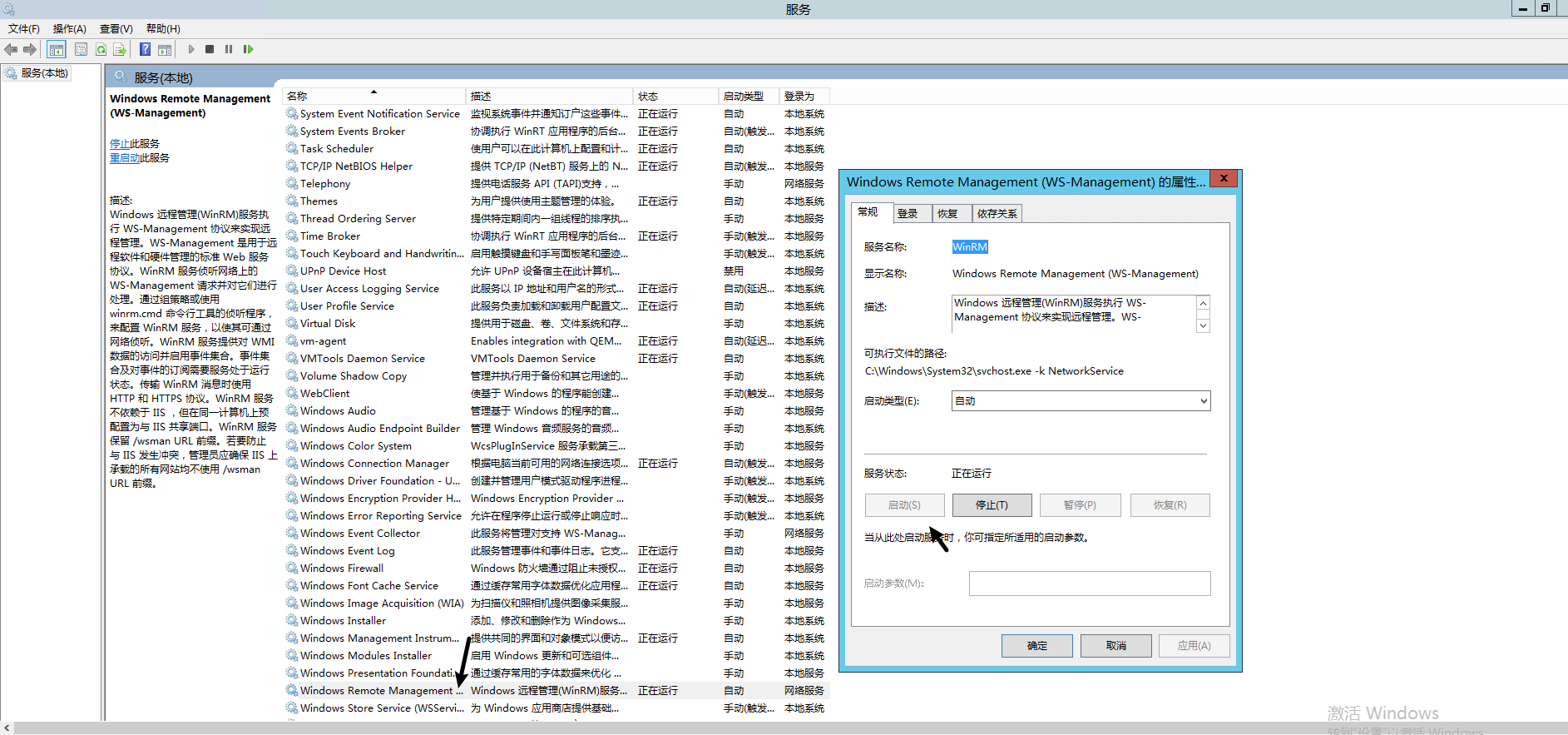
如果在开启过程中报错:错误1068:依存服务或组无法启动
点击属性,找到 依存关系,确保依赖的服务已开启
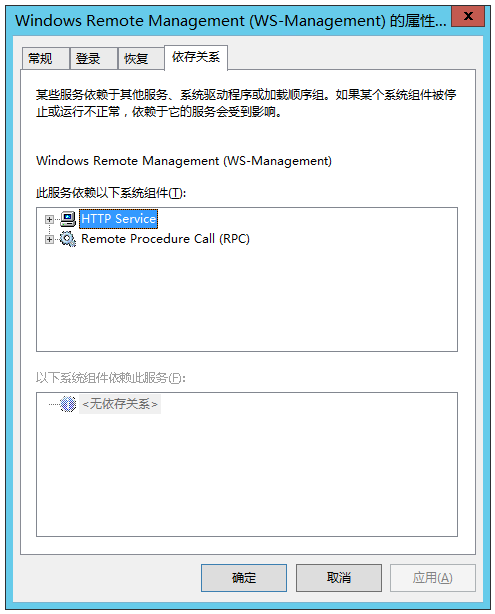
检查 HTTP Service 服务是否启动
sc query http
如果出现 STATE : 1 STOPPED ,那么就代表该服务已被禁用,解决方案如下:
- 启用 HTTP 服务
sc config http start= auto - 启动 HTTP
net start http - 验证,应该输出
STATE : RUNNINGsc query http - 重建 WinRM(必须)
winrm invoke Restore winrm/Config @{}
winrm quickconfig -q